
Help Center
Detailed guides for every part of the dashboard: overview, review link and QR code, funnel, analytics, reviews, AI features, copilot, subscription, and settings. Use the links below to jump to a topic.
Getting started
Add your business and connect your Google review link so you can start collecting reviews.
What you need before you start
- A Google Business Profile (formerly Google My Business) for your business.
- Your Google review link (the URL that sends customers to write a review on your Google listing).
Step 1: Sign up and add your business
After you create an account, you will be prompted to add your first business. Enter the business name, category (e.g. restaurant, salon, dental), and city. This helps us label your link and QR code correctly.
Step 2: Add your Google review link
You must add the link that goes directly to your Google review form. To find it:
- Open Google Maps or search for your business on Google.
- Open your business listing and click Share or Get more reviews.
- Copy the link. When you open it in a browser, it should take you straight to the "Write a review" screen for your business.
Paste that link into the field when adding your business in JoltReview. Save. You will then get your own JoltReview review link and a QR code.
Quick tip
If the link you paste does not open the review form for your business, double-check that you copied the correct URL from your Google Business Profile. Using a generic Google Maps link will send reviewers to the wrong place.
Dashboard overview
Your dashboard home: key numbers, AI summary, and "What to fix" themes from private feedback.
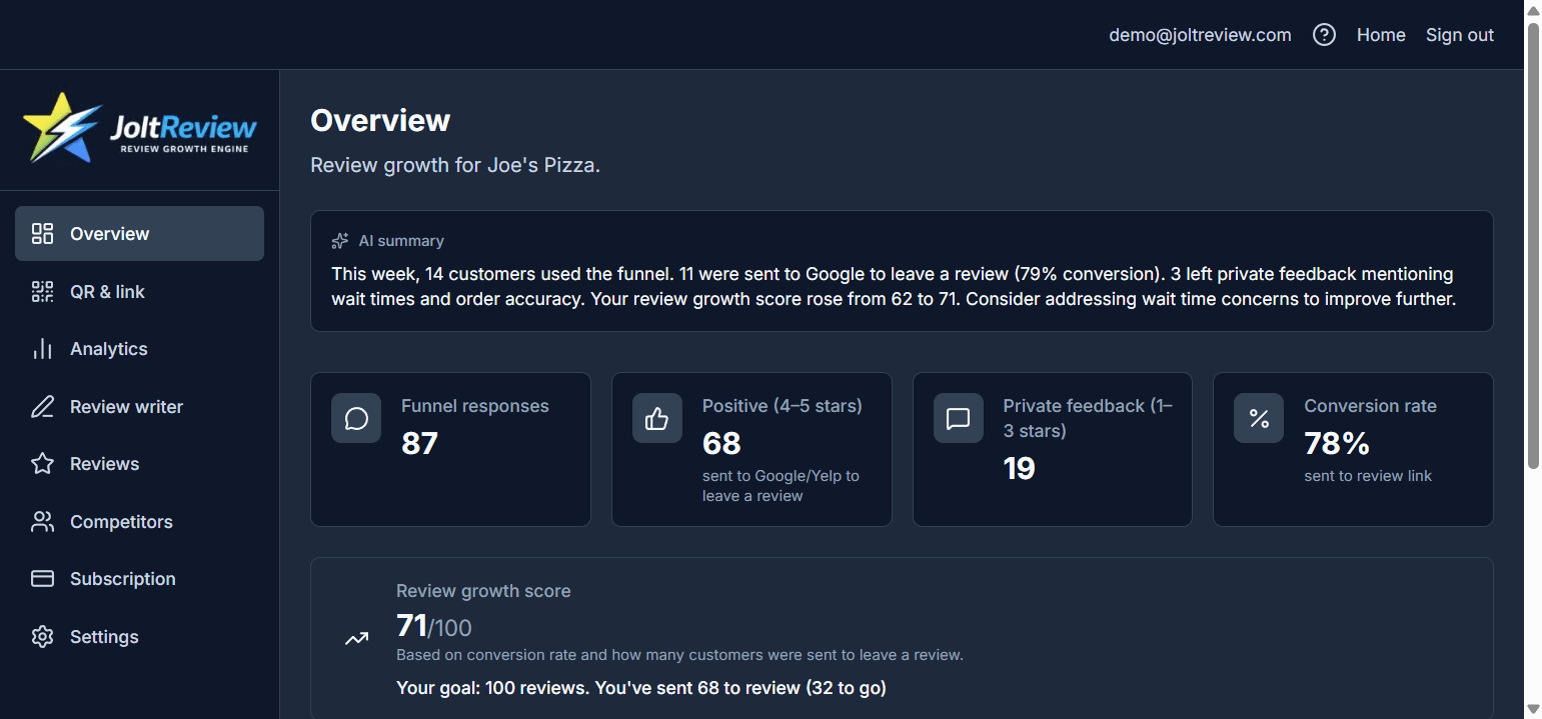
The Overview page (sidebar: Overview) is your main dashboard. It shows:
- Funnel responses – total number of customers who used your review link or QR code and rated their experience.
- Positive (4–5 stars) – how many were sent to Google or Yelp to leave a public review.
- Private feedback (1–3 stars) – how many gave a lower rating and could leave private comments only you see.
- Conversion rate – the share of respondents who were sent to the review link.
If you are on Premium, you also see an AI summary (a 1–2 sentence summary of your last 7 days) and a What to fix (AI) section. That section appears for all Premium users. When you have private feedback with written comments (1–3 stars), you can click "Generate themes": the AI groups that feedback into themes—labeled categories like "Wait time" or "Staff attitude" with a count of how many comments fall into each, so you see which issues come up most and what to fix first. You can also use the buttons to get your QR & review link or to email yourself a report.
Review link and QR code
Where to find your link and QR code, and how to use them so customers can leave reviews.
Where to find them
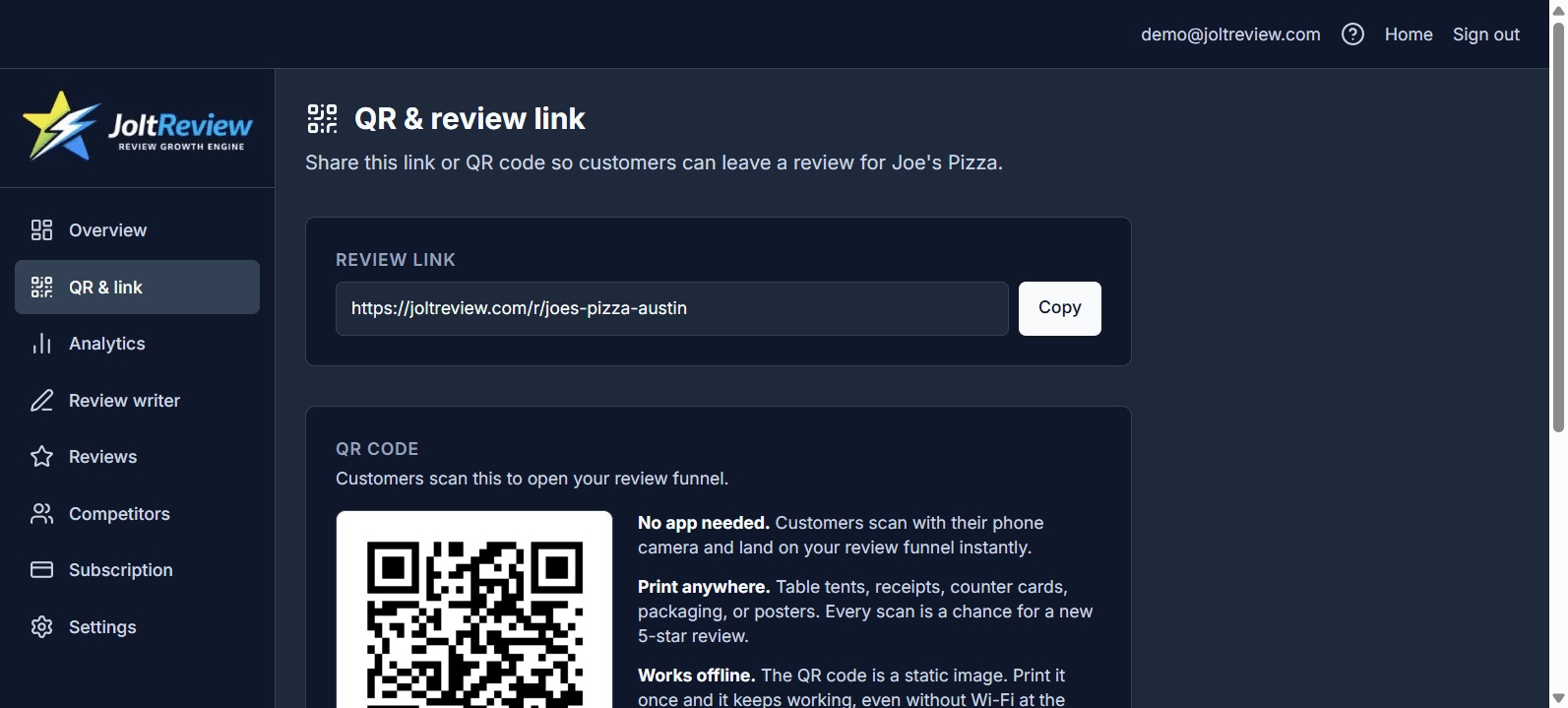
In your dashboard, open QR & link (in the sidebar or main menu). On that page you will see:
- Review linkA URL like yoursite.com/r/your-business-id. This is the link you share with customers.
- QR codeAn image you can download and print on posters, table tents, or receipts.
How to use the link
Copy the review link and paste it into emails, your website, or SMS. When a customer clicks it, they rate their experience, leave honest feedback, and can access the same public review options as every other customer.
How to use the QR code
Download the QR code image and print it on materials customers see at or after their visit: table tents, receipts, counter cards, or posters. When someone scans the code with their phone camera, they open the same funnel. No app is required.
Best places to put your link or QR code
- • Receipts (printed or email)
- • Table tents or counter cards
- • Your website footer or contact page
- • Follow-up emails after a service or delivery
How the Honest Review Flow works
Customers leave honest feedback, then every customer sees the same public review options.
What the customer sees
When someone opens your review link or scans your QR code, they rate their experience (1–5 stars), can leave a comment, and optionally provide contact information for follow-up.
After submitting feedback
Every customer sees the same thank-you screen with public review options — Google, Yelp, and any other links you have configured. Leaving a public review is always optional.
In your Feedback Inbox
All feedback appears in your dashboard. Low-rated responses are labeled "Needs follow-up" so your team can assign tasks and resolve issues. Do not offer incentives, discounts, gifts, or rewards in exchange for posting, editing, or removing a public review.
Why this helps
You collect honest feedback from every customer, give every customer equal access to public review links, and use that feedback to improve your business.
Analytics and reports
See how many people used your funnel and how many were sent to leave a review.
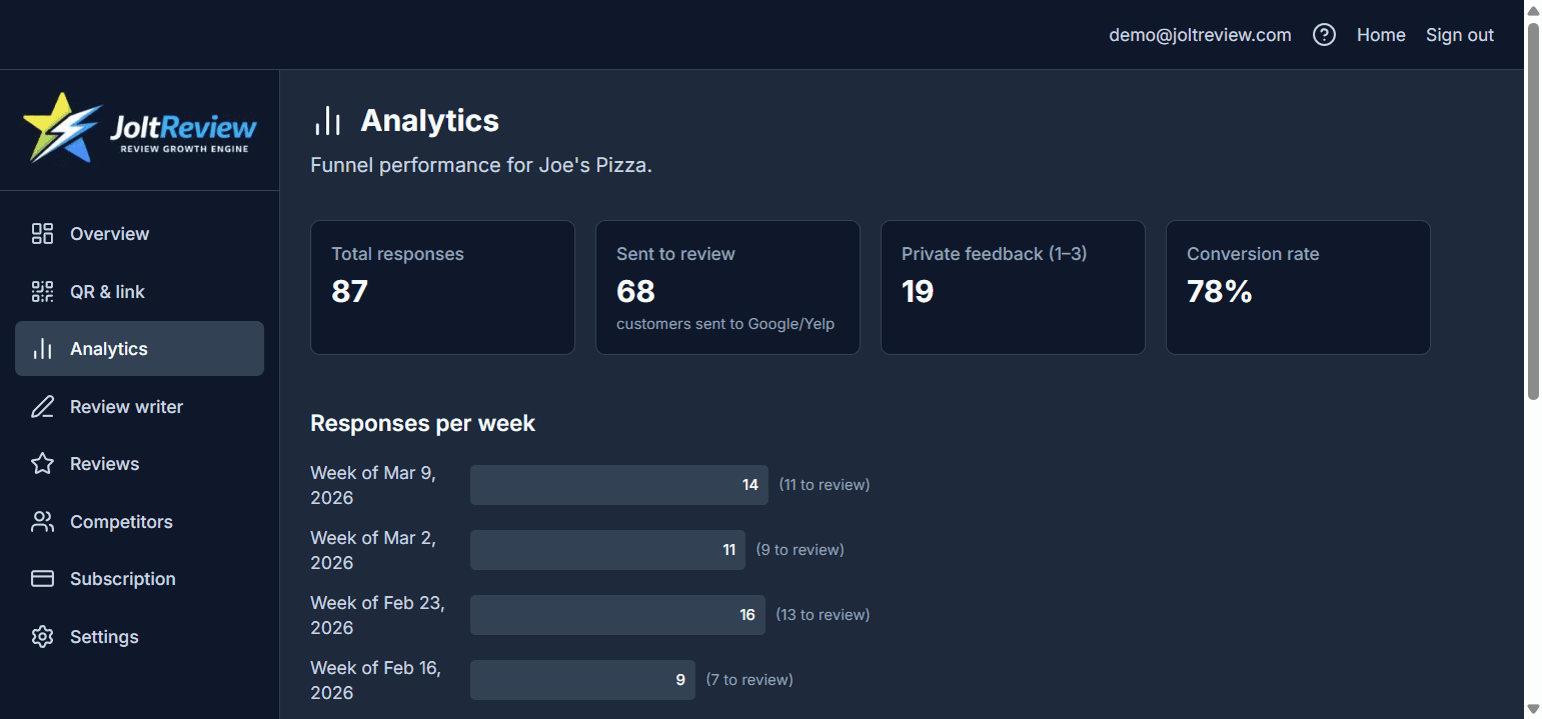
The Analytics page (sidebar: Analytics) gives a detailed view of funnel performance for your business.
Top numbers
You see total responses, positive (4–5 stars), private feedback (1–3 stars), and conversion rate. These match the Overview but let you focus on trends over time.
Responses per week
A chart shows how many people responded each week and how many of those were positive (sent to review). Use it to see if sharing your link or QR is driving more traffic.
Funnel events
When available, you see counts for: funnel views (link or QR opened), rated (customer chose a star rating), redirected to review (sent to Google/Yelp), and private feedback submitted. This shows where in the funnel people drop off or complete the flow.
Email reports
From the Overview you can request an email report (Premium). A summary of funnel activity and conversions is sent to your inbox so you can track progress without logging in.
Funnel responses (Reviews)
Every rating and comment from your review link. Filter by all, positive, or private.
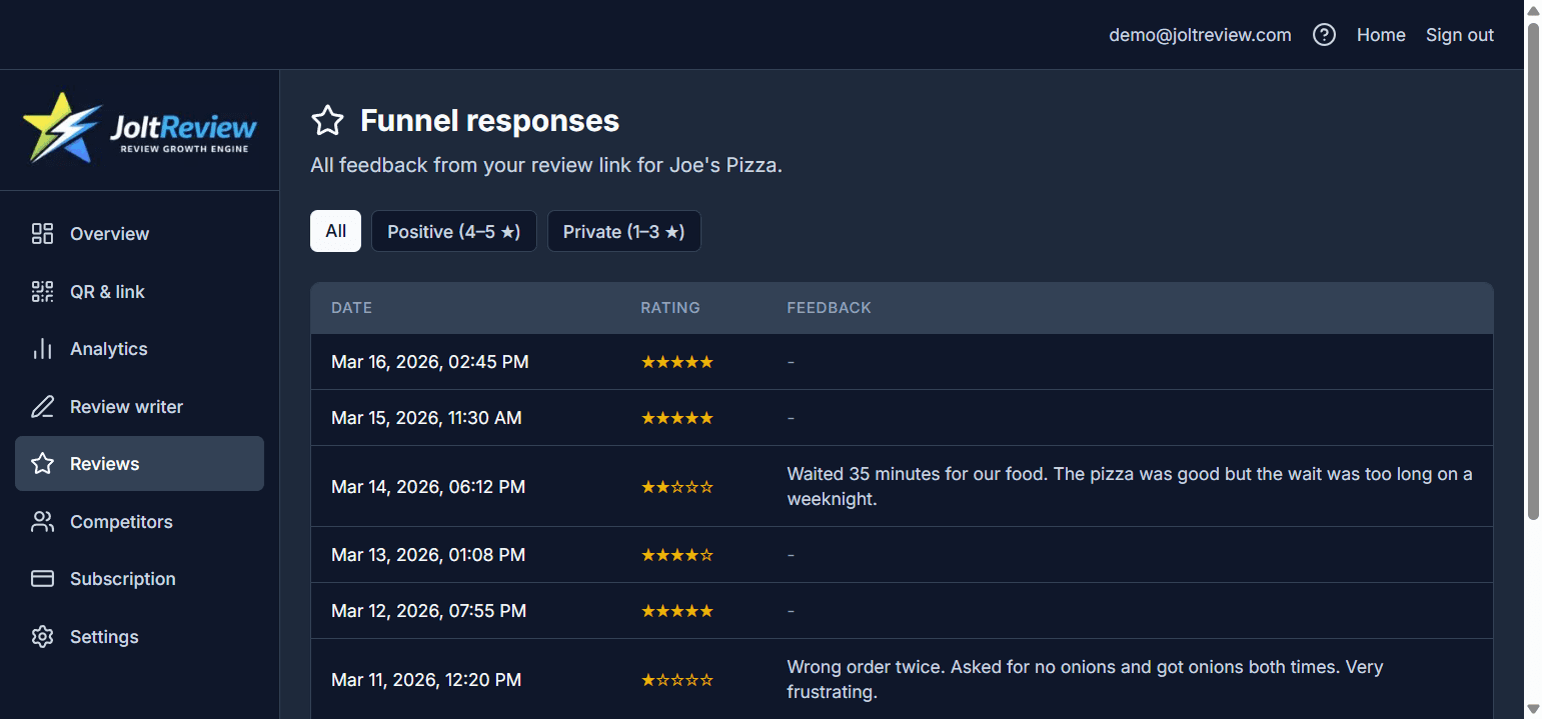
The Reviews page (sidebar: Reviews) lists every response from customers who used your review link or QR code.
- All – every response (any rating).
- Positive (4–5 stars) – customers who were sent to Google or Yelp to leave a public review. You see their rating and when they responded.
- Private (1–3 stars) – customers who saw the private feedback form. Their written feedback is only visible to you and is not posted on Google, Yelp, or anywhere else.
Use this page to read private feedback, see how many people are rating you, and spot patterns. Private feedback is valuable for fixing issues before they become public reviews.
AI features
AI summary, feedback themes, and the AI assistant (copilot). Premium only; monthly limits apply.
Premium includes three AI features. Each has a monthly usage limit; limits reset at the start of each month.
AI summary (Overview)
On the Overview page, a short 1–2 sentence summary of your business’s last 7 days (funnel views, ratings, conversion) is generated automatically. It helps you see at a glance how you’re doing. Counts toward your monthly summary limit.
What to fix (feedback themes)
Also on Overview: the "What to fix (AI)" section. When you have private feedback (1–3 star responses with written comments), you can click Generate themes. The AI groups that feedback into themes so you can see what to improve.
What themes are: Themes are labeled categories the AI assigns to your private feedback—for example "Wait time", "Staff attitude", "Cleanliness", or "Price/value". Each theme has a count showing how many comments fell into that category. So instead of reading every comment one by one, you see which issues come up most often and what to fix first. When you don’t have any private feedback with text yet, the section still appears and tells you that you can generate themes once you do. Each generation counts toward your monthly themes limit.
Copilot
The Copilot is an AI assistant you can chat with from the dashboard. It uses your funnel data to answer questions. See the Copilot section below for full details.
Copilot
Your AI assistant for review growth. Ask questions in plain language and get answers based on your funnel data.
The Copilot is an in-dashboard AI assistant (Premium only). A floating chat icon at the bottom-right of the dashboard opens the Copilot panel. You can ask questions in your own words and get short, actionable answers. The assistant uses your business’s funnel data—views, ratings, conversion, and feedback—so answers are tailored to your account.
What you can use it for
Use the Copilot to:
- Get more reviews – Ask how to improve your funnel or where to share your link and QR code. Get practical tips based on your current numbers.
- Summarize feedback – Ask for a summary of your private feedback or overall performance. Useful when you want a quick readout without opening every page.
- Understand conversion – Ask why conversion might have changed or what your funnel stats mean. The assistant can explain view→rate and rate→review flow in plain language.
- Ask one-off questions – Anything about your review growth, funnel, or how to use the product. For example: "Why did my conversion drop?" or "What should I do with my private feedback?"
How it works
You can start a new conversation anytime or pick an existing one from the list. Each conversation keeps a thread of your questions and the assistant’s replies so you can follow up. The footer shows how many questions you have left this month (e.g. "12 of 50 questions this month"). When you hit the limit, you can still read past conversations; the limit resets at the start of each month. Conversations are stored for 30 days and then removed automatically.
Quick prompts
When the chat is empty, you’ll see suggested prompts like "How do I get more reviews?", "Summarize my feedback", and "Why did my conversion drop?" Click one to send it and get an answer right away.
AI Review Writer
Generate a short review for customers to copy and paste to Google or Yelp. Premium only.
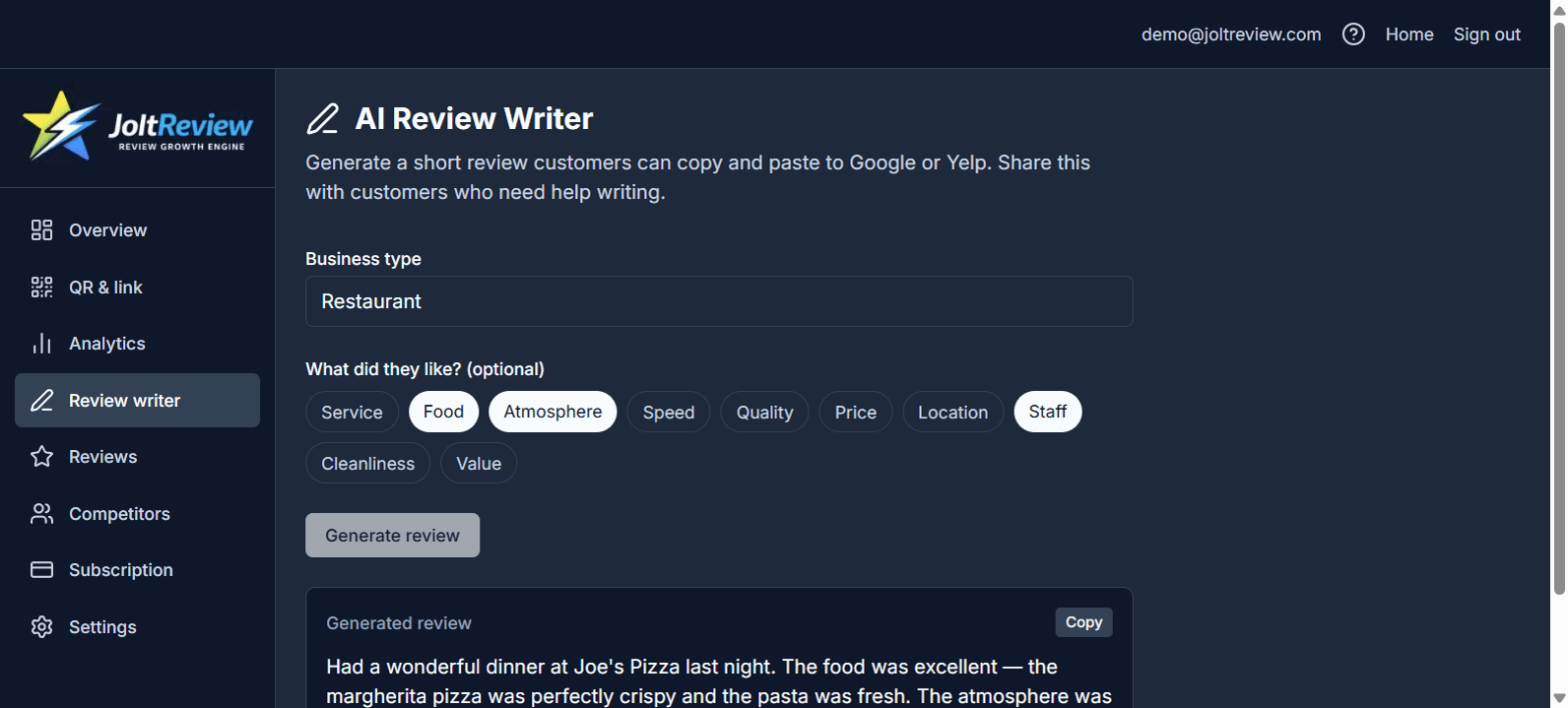
The Review writer page (sidebar: Review writer) lets you create a ready-to-use review that customers can copy and paste onto Google or Yelp.
You enter your business type (e.g. restaurant, salon) and optionally select what the customer liked (service, food, speed, etc.). The AI writes a short, natural review. Share it with customers who want to leave a review but don’t know what to write. This feature is available on Premium only.
Competitors
Add competitors and compare their Google rating and review count with your funnel performance. Premium only.
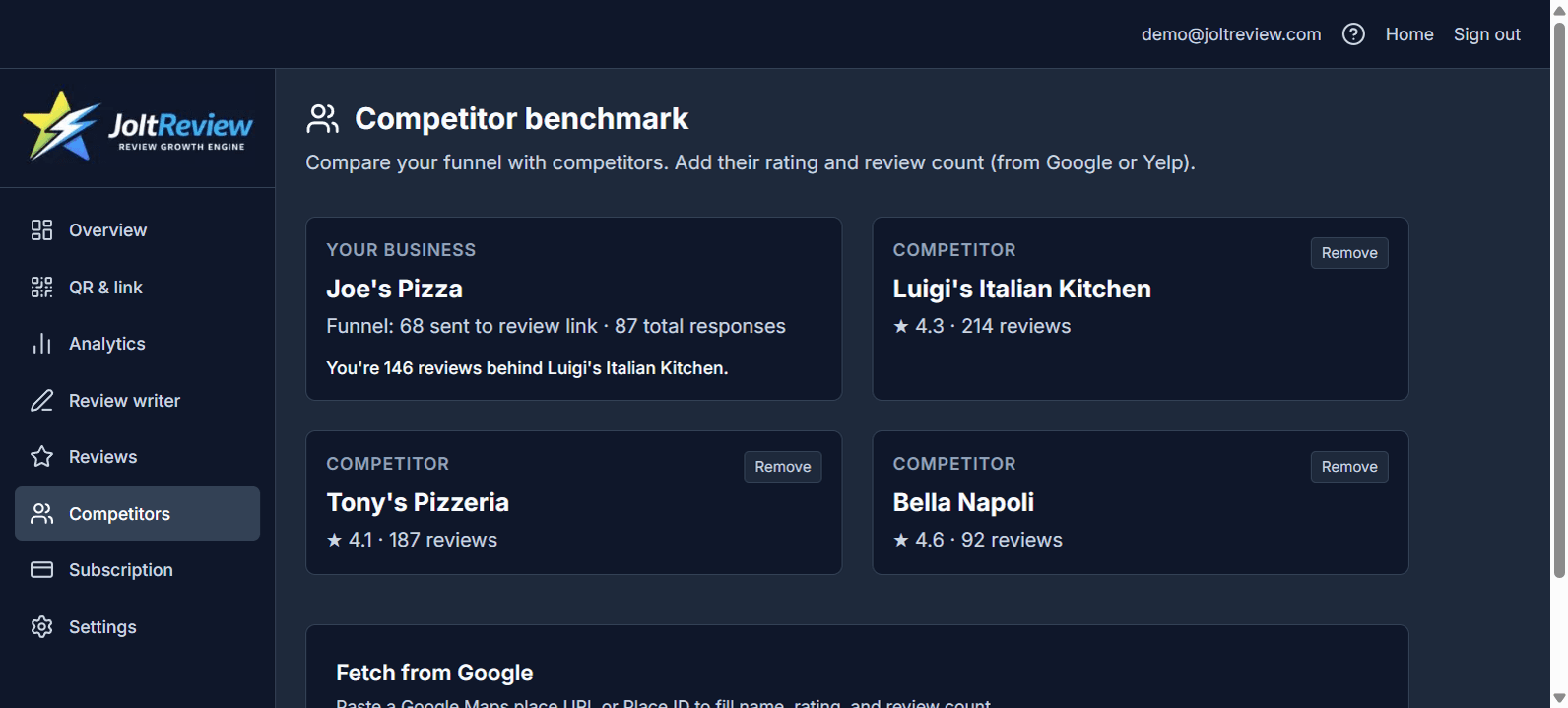
The Competitors page (sidebar: Competitors) lets you add nearby businesses by name, Google rating, and review count. You can look them up on Google or paste a Google Maps URL to auto-fill details.
Your own funnel stats (total responses, positive ratings) are shown alongside the list so you can compare how you’re doing versus their public numbers. Use it to benchmark and see where you stand. This feature is available on Premium only.
Subscription
Manage your plan, start a trial, upgrade to Premium, or update payment.
The Subscription page (sidebar: Subscription) shows your current plan (Free or Premium), trial status if applicable, and options to upgrade or manage billing.
- You can start a free trial of Premium if you haven’t already.
- Upgrade to Premium – monthly or yearly billing via Stripe. Premium includes AI summary, feedback themes, AI assistant (copilot), Review Writer, Competitors, SMS review requests, weekly email reports, and full analytics.
- Billing portal – open the Stripe customer portal to update your payment method, view invoices, or cancel your subscription.
Settings
Edit your business name, category, city, and Google (and Yelp) review link.
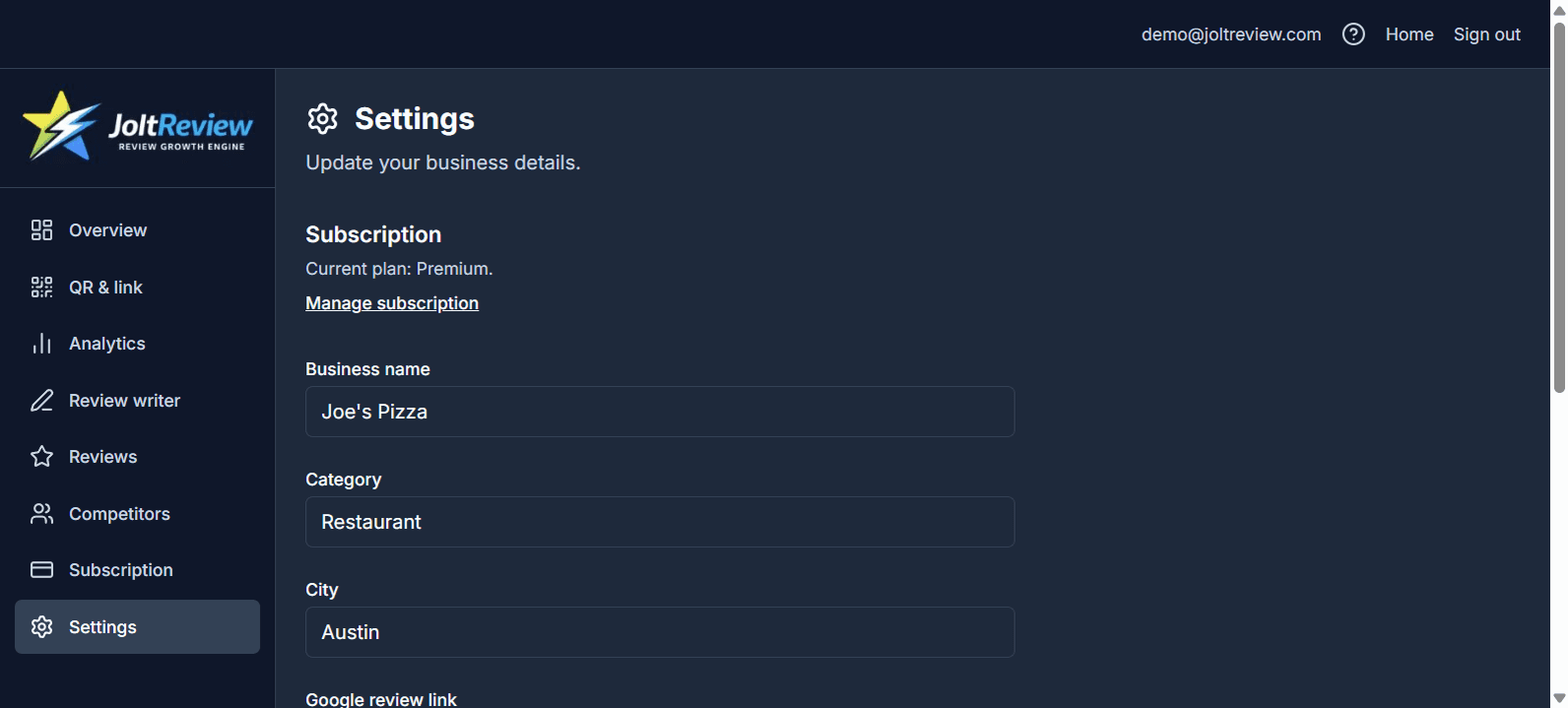
The Settings page (sidebar: Settings) is where you update your business details.
- Business name, category, city – used to label your link and QR code.
- Google review link – the URL that sends customers to write a review on your Google listing. It must be correct so that when customers rate 4–5 stars they are sent to the right place. Find it in Google Maps or your Google Business Profile (Share or Get more reviews).
- Yelp link (optional) – if you use Yelp, you can add your Yelp review link here.
You can also open the subscription page from here or delete your account. Deleting your account removes your data; this cannot be undone.
Frequently asked questions
- Do I need a Google Business Profile?
- Yes. Your customers are sent to your Google (or Yelp) page to leave a review. You need a Google Business Profile and its review link to use the funnel for Google reviews. If you do not have one yet, set it up at business.google.com.
- Is feedback from 1–3 star ratings really private?
- Yes. Those responses are stored only in your JoltReview account. They are not sent to Google, Yelp, or any other public site. Only you (and your team, if you add users) can see them in the dashboard.
- Can I use this for more than one location?
- You get one review link and one QR code per business. If you have multiple locations, add each as a separate business (where the product supports it) so each location has its own link and QR code.
- How do I get my Google review link?
- In Google Maps or Google Search, open your business listing. Click Share or Get more reviews and copy the link. When you open that link in a browser, it should go directly to the "Write a review" flow for your business. Paste that link into JoltReview when adding your business.
- What if I already have a lot of reviews?
- The Honest Review Flow still helps. Ask every customer for honest feedback, give every customer the same public review options, and use private feedback to improve before issues become patterns.